

Choose an AI assistant to open this article URL with a summary request. Review generated summaries against the original article.
Managing emails every day can become a time-consuming task. Opening messages, searching for information, replying to conversations, and organizing your inbox often requires repeated clicks that slow down your workflow.
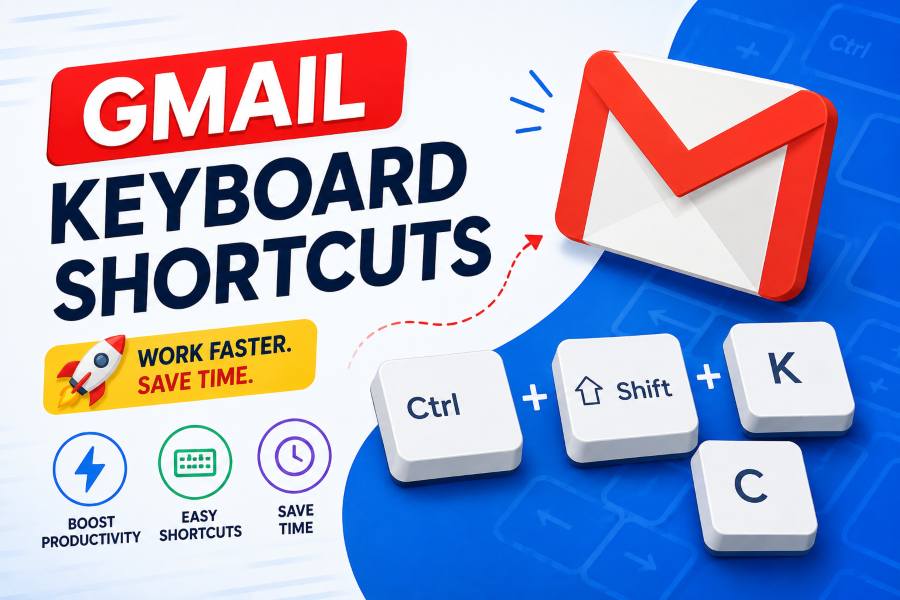
This is where gmail keyboard shortcuts become valuable. These shortcuts allow users to perform common Gmail actions quickly using simple key combinations instead of manually navigating menus.
Whether you are a business professional, freelancer, marketer, student, or regular Gmail user, shortcut keys can help you write emails faster, organize conversations, and handle large inboxes more efficiently.
Gmail provides dozens of built-in commands designed to improve productivity. Once enabled and practiced regularly, these shortcuts can reduce repetitive tasks and help you spend less time managing emails.
In this guide, we will explain what Gmail keyboard shortcuts are, how to enable them, the most useful shortcuts, and how they can improve your daily email workflow.
Why Gmail Keyboard Shortcuts Are Important for Productivity
Email has become an essential communication tool for businesses and individuals. However, spending too much time organizing messages can reduce productivity.
Gmail keyboard shortcuts help solve this problem by making common actions faster. Instead of clicking different buttons, users can complete tasks instantly with keyboard commands.
For example, archiving emails, replying to messages, opening the search bar, and switching between folders can all be done much faster with shortcuts.
These commands are especially useful for people who manage large inboxes. Customer support teams, sales professionals, managers, and business owners can process emails more efficiently by reducing unnecessary mouse movements.
Another benefit is improved focus. When users rely more on keyboard commands, they can maintain a smoother workflow and spend more time on important tasks instead of repetitive email management.
How to Enable Gmail Keyboard Shortcuts
Before using Gmail shortcuts, you need to activate them from your account settings.
Follow these steps:
- Open Gmail and click the Settings icon.
- Select See all settings.
- Go to the General tab.
- Find the Keyboard shortcuts section.
- Select Keyboard shortcuts on.
- Click Save Changes.
After enabling shortcuts, press Shift + ? inside Gmail to view the complete shortcut list.
If you use multiple Gmail accounts, you need to enable shortcuts separately for each account.
Best Gmail Keyboard Shortcuts You Should Know
Using the right Gmail shortcuts can make everyday email tasks faster and more efficient. These commands help you manage messages, navigate your inbox, and write emails without relying heavily on your mouse.
Email Management Shortcuts
These Gmail keyboard shortcuts help you organize conversations quickly:
- E – Archive selected emails
- # – Delete selected emails
- R – Reply to an email
- A – Reply to everyone
- F – Forward an email
- S – Star or unstar messages
- Shift + I – Mark emails as read
- Shift + U – Mark emails as unread
These shortcuts make it easier to process emails and keep your inbox organized.
Navigation Gmail Shortcut Keys
Navigation shortcuts allow you to move through Gmail faster:
- J – Move to older emails
- K – Move to newer emails
- O / Enter – Open selected email
- U – Return to inbox
- G + I – Go to inbox
- G + S – Open starred emails
- G + T – Open sent messages
- / – Open email search
These commands help users browse their inbox smoothly and reduce unnecessary clicks.
Writing and Formatting Gmail Shortcuts
Gmail shortcut keys can also speed up email creation and formatting:
- C – Compose a new email
- Ctrl + Enter / Cmd + Enter – Send email
- Ctrl + K / Cmd + K – Insert links
- Ctrl + B / Cmd + B – Bold text
- Ctrl + I / Cmd + I – Italic text
- Ctrl + U / Cmd + U – Underline text
How Gmail Shortcuts Improve Email Productivity
Gmail shortcuts help users create a faster and more organized email workflow. By reducing repetitive actions and simplifying common tasks, these commands make daily email management more efficient.
Save Time on Repetitive Tasks
Many email activities are repeated throughout the day, such as replying, archiving, and organizing messages. Gmail keyboard shortcuts reduce the time needed for these actions by allowing users to complete tasks instantly.
Instead of searching through menus, users can manage emails with a few key presses. These small time savings can add up to several hours of increased productivity over time.
Manage Large Inboxes Easily
A busy inbox can make it difficult to find and manage important conversations. Gmail shortcuts help users organize emails faster and maintain better control over their messages.
When combined with Gmail labels, filters, and search features, shortcuts create a smoother system for handling large volumes of emails.
Create Better Email Habits
Productivity is not only about speed; it is also about building an efficient routine. Using Gmail shortcuts helps users:
- Process emails faster
- Keep inboxes organized
- Reduce unnecessary distractions
- Focus on important communication
With regular practice, Gmail shortcut keys become natural habits that improve overall workflow.
Advanced Gmail Productivity Tips
Beyond basic commands, combining Gmail features with gmail keyboard shortcuts can create a faster and more efficient email workflow. These advanced techniques help users find messages quickly, avoid mistakes, and build better email habits.
Use Gmail Search Commands
Gmail search operators make finding specific emails much easier. Instead of scrolling through hundreds of messages, users can quickly locate important conversations.
Examples include:
- from: Find emails from a specific sender
- subject: Search emails by subject line
- has:attachment Find emails containing files
Combining search commands with Gmail shortcuts helps users manage emails faster and improve overall productivity.
Use the Undo Send Feature
Sending the wrong email can happen to anyone. Gmail’s Undo Send feature allows users to cancel a message shortly after clicking send.
This feature works especially well with shortcut-based workflows by adding an extra layer of safety when managing emails quickly.
Practice Shortcuts Regularly
Learning all Gmail shortcuts at once can feel overwhelming. Start with the most useful commands:
- C – Compose an email
- E – Archive messages
- R – Reply quickly
- / – Search emails
- ? – View shortcut list
Once these become familiar, gradually add more advanced Gmail commands to improve your workflow.
Common Gmail Shortcut Problems and Solutions
Even after enabling gmail keyboard shortcuts, some users may experience issues. These common problems can usually be fixed with a few simple steps.
1. Shortcuts Are Not Working: If Gmail shortcuts are not responding, check whether they are enabled in your account settings. Go to Gmail settings and make sure the keyboard shortcuts option is turned on.
2. Browser Issues: An outdated browser or conflicting extensions can prevent Gmail commands from working properly. Updating your browser, restarting it, or disabling extensions can help solve these problems.
3. Using Shortcuts in Text Fields: Some Gmail shortcuts do not work while typing inside an email. Click outside the text box and try the shortcut again to ensure Gmail recognizes the command.
Final Thoughts
Gmail keyboard shortcuts are one of the easiest ways to improve email productivity. They help users manage messages faster, reduce repetitive tasks, and create a smoother workflow.
Although learning shortcuts requires a little practice, the time saved in the long run makes the effort worthwhile. Whether you handle personal emails or professional communication, Gmail commands can help you stay organized and efficient.
Start with basic shortcuts like compose, reply, archive, and search. As you become comfortable, add more advanced commands to create a faster Gmail experience.
FAQ’s
What are Gmail keyboard shortcuts?
Gmail keyboard shortcuts are key combinations that allow users to complete email actions faster without using a mouse.
How do I turn on Gmail keyboard shortcuts?
Go to Gmail Settings, open the General section, enable keyboard shortcuts, and save your changes.
What is the most useful Gmail shortcut?
Some of the most useful shortcuts include C for composing, E for archiving, R for replying, and / for searching.
Can Gmail shortcuts save time?
Yes. Gmail shortcuts reduce repetitive actions and help users manage emails more efficiently.
Do Gmail keyboard shortcuts work on Mac?
Yes. Most Gmail shortcuts work on Mac, but some commands use the Command key instead of Control.
How can I see the full Gmail shortcut list?
Press Shift + ? inside Gmail to open the complete shortcut menu.

Comments
0 responsesNo comments yet. Be the first to share your thoughts.